Usage Guide
This guide walks through how to use each feature of OpenGIN-X with practical examples.
Search Entity
Search for entities by ID, kind, or name.
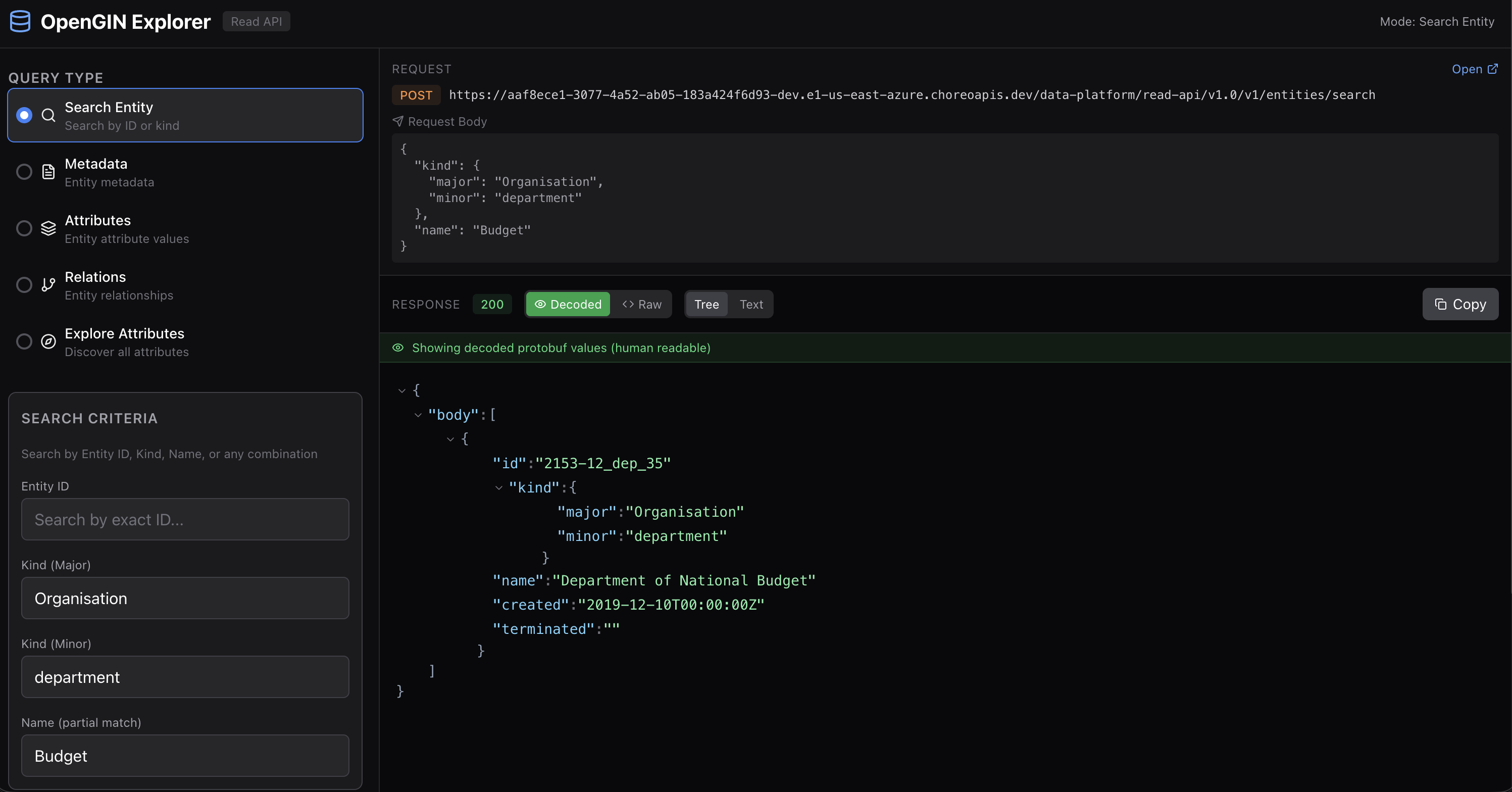
How to Search
- Select "Search Entity" from the Query Type panel
- Enter search criteria:
- Entity ID: For exact ID match
- Kind (Major): Entity type (e.g., "Organisation")
- Kind (Minor): Entity subtype (e.g., "department")
- Name: Partial name match
- Click "Execute Query"
Example: Find Budget Department
Kind (Major): Organisation
Kind (Minor): department
Name: Budget
Response:
{
  "body": [
    {
      "id": "2153-12_dep_35",
      "kind": {
        "major": "Organisation",
        "minor": "department"
      },
      "name": "Department of National Budget",
      "created": "2019-12-10T00:00:00Z",
      "terminated": ""
    }
  ]
}
Relations
Query relationships between entities.
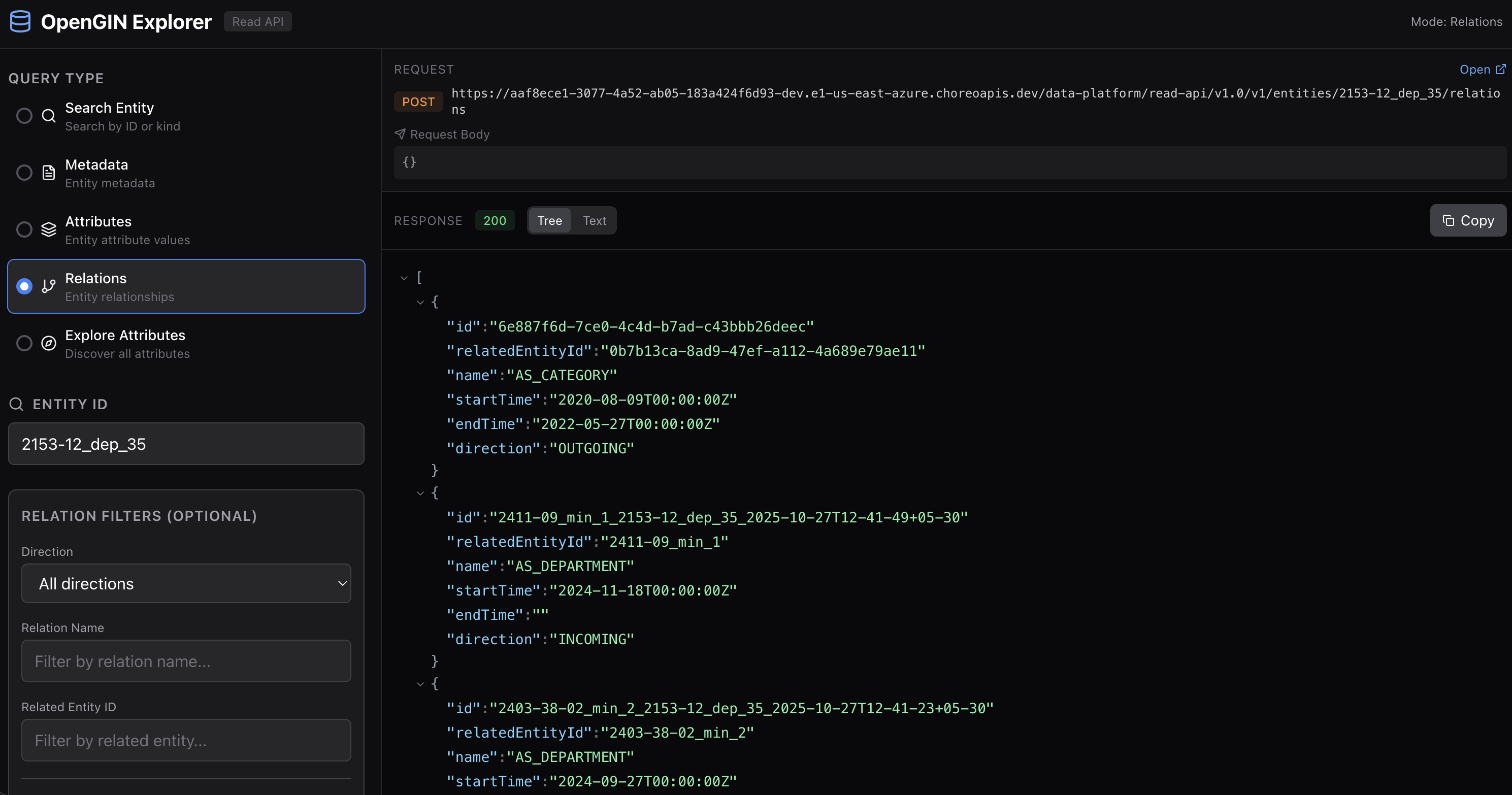
How to Query Relations
- Select "Relations" from the Query Type panel
- Enter the Entity ID (required)
- Optionally filter by:
- Direction: OUTGOING, INCOMING, or All
- Relation Name: Filter by relationship type
- Related Entity ID: Find specific relationship
- Time Filters: Active At or Start/End Time
- Click "Execute Query"
Example: Get All Relations
To get all relations for an entity, simply provide the Entity ID and leave all filters empty:
Entity ID: 2153-12_dep_35
Direction: All directions
Response:
[
  {
    "id": "6e887f6d-7ce0-4c4d-b7ad-c43bbb26deec",
    "relatedEntityId": "0b7b13ca-8ad9-47ef-a112-4a689e79ae11",
    "name": "AS_CATEGORY",
    "startTime": "2020-08-09T00:00:00Z",
    "endTime": "2022-05-27T00:00:00Z",
    "direction": "OUTGOING"
  },
  {
    "id": "2411-09_min_1_2153-12_dep_35_2025-10-27T12-41-49+05-30",
    "relatedEntityId": "2411-09_min_1",
    "name": "AS_DEPARTMENT",
    "startTime": "2024-11-18T00:00:00Z",
    "endTime": "",
    "direction": "INCOMING"
  }
]
Relation Types
Common relation types you may encounter:
| Relation Name | Description |
|---|---|
AS_CATEGORY | Entity belongs to a category |
AS_DEPARTMENT | Entity is a department of another |
IS_ATTRIBUTE | Entity has an attribute relationship |
HAS_CHILD | Parent-child category relationship |
Explore Attributes
Discover all attributes by traversing the category hierarchy.
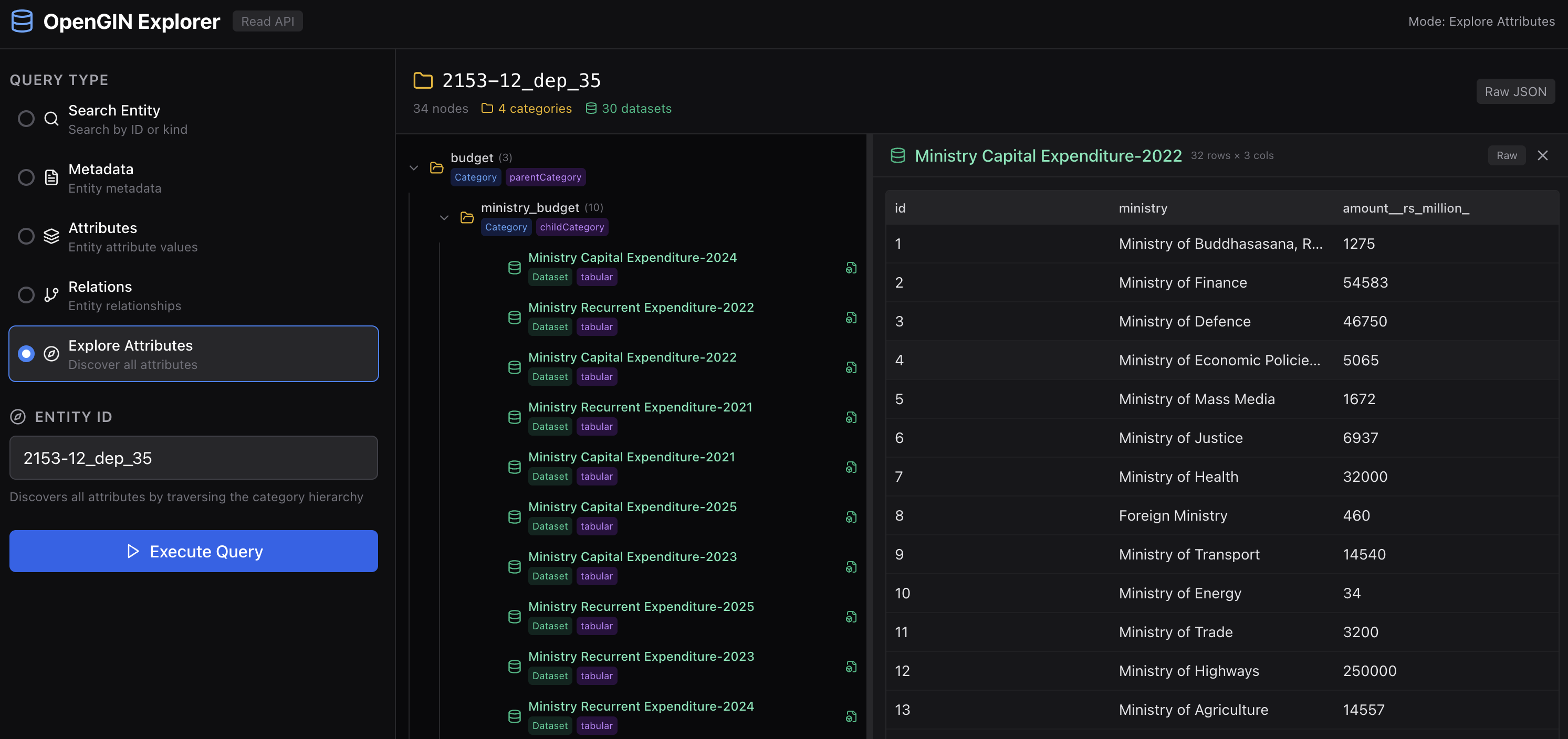
How to Explore
- Select "Explore Attributes" from the Query Type panel
- Enter the Entity ID
- Click "Execute Query"
- Browse the hierarchical tree on the left
- Click on datasets to view their data on the right
Understanding the Tree View
The explore view shows:
- Categories (folder icons): Organizational groupings
- Datasets (table icons): Actual data that can be viewed
Each node shows:
- Name: Category or dataset name
- Type badges: "Category", "parentCategory", "childCategory", "Dataset", "tabular"
- Count: Number of child items
Viewing Dataset Data
- Click on any dataset in the tree (marked with "Dataset" badge)
- The right panel shows tabular data with:
- Column headers
- Row data
- Row count and column count
- Use "Raw" toggle to see raw JSON response
Example: Ministry Budget Data
Exploring entity 2153-12_dep_35 reveals:
- budget (3 categories)
- ministry_budget (10 datasets)
- Ministry Capital Expenditure-2024
- Ministry Recurrent Expenditure-2022
- etc.
- ministry_budget (10 datasets)
Clicking "Ministry Capital Expenditure-2022" shows a table with:
- 32 rows × 3 columns
- Columns: id, ministry, amount_rs_million_
Request Inspection
Every query shows the underlying API request.
Viewing Request Details
Above the response, you can see:
- Method: POST or GET
- URL: Full API endpoint
- Request Body: JSON payload sent
cURL Commands
The API Log Panel (bottom of screen) shows cURL commands for each request:
curl -X POST \
  'https://api.example.com/v1/entities/2153-12_dep_35/relations' \
  -H 'Content-Type: application/json' \
  -d '{}'
This is useful for:
- Debugging issues
- Reproducing requests in other tools
- Sharing exact API calls with team members
Tips and Best Practices
Finding Entity IDs
If you don't know an entity ID:
- Use Search Entity with Kind and Name filters
- Browse results to find the entity
- Copy the ID for use in other queries
Exploring Unknown Data
When working with unfamiliar data:
- Start with Search Entity to find entities of interest
- Use Relations to understand how entities connect
- Use Explore Attributes to discover available data
Performance
- Explore Attributes makes multiple API calls to traverse the tree
- Large hierarchies may take longer to load
- Use specific Entity IDs when possible for faster queries